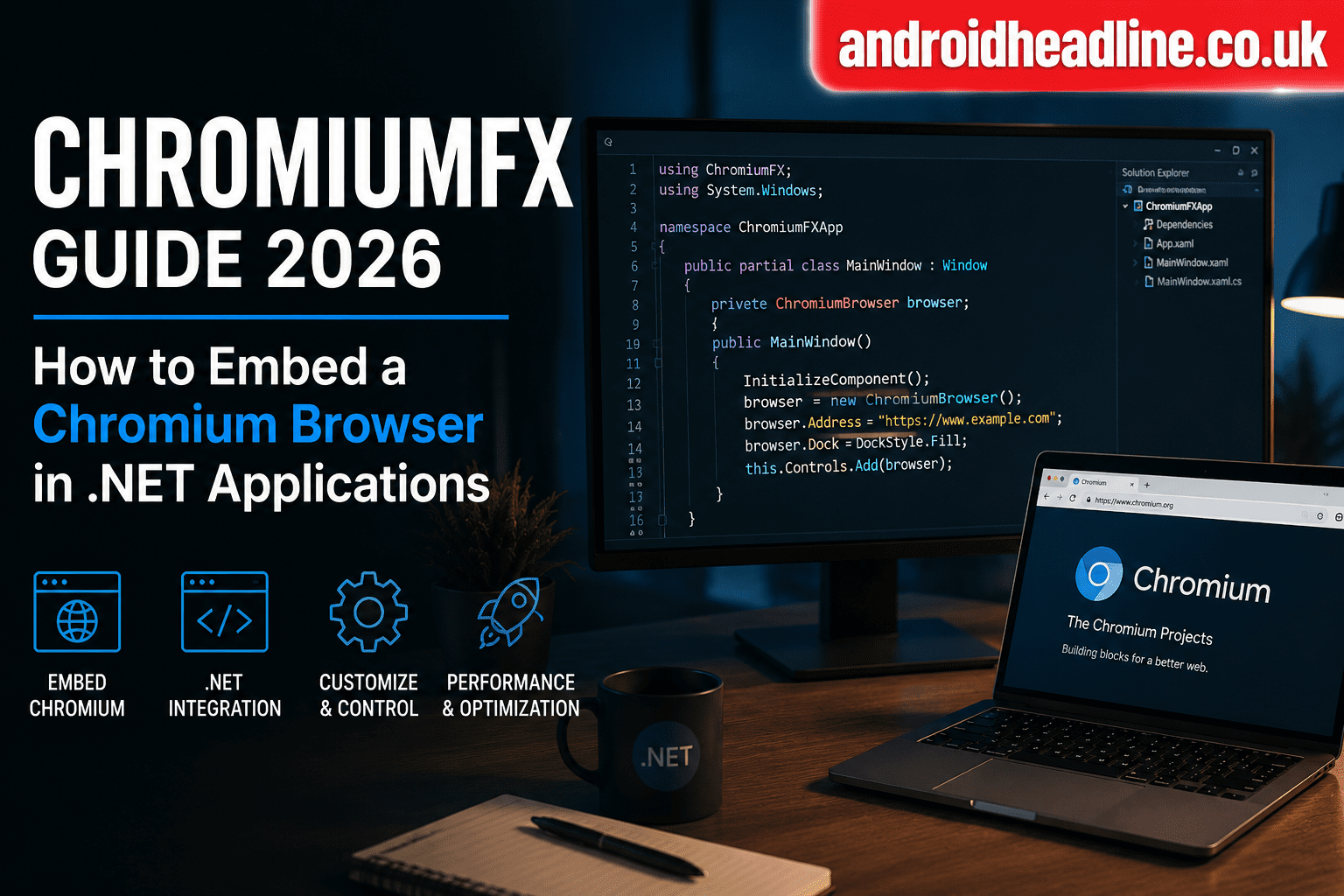
If you’re building desktop applications with .NET and want to display modern web content directly inside your software, you’ve probably come across ChromiumFX. In this ChromiumFX Guide 2026, I’ll explain what ChromiumFX is, how it works, and how you can use it to embed a Chromium browser into your .NET applications.
Modern software often combines desktop functionality with web technologies. Whether you’re creating a dashboard, an internal business tool, a custom browser, or a web-powered desktop app, embedding Chromium can save a lot of development time. Instead of building every interface from scratch, you can leverage HTML, CSS, and JavaScript inside your .NET application.
I’ve experimented with several browser embedding solutions over the years, and Chromium-based frameworks consistently provide the best compatibility with modern websites. This guide will walk you through everything you need to know, from installation to implementation and optimization.
What Is ChromiumFX?
ChromiumFX is a .NET wrapper around the Chromium Embedded Framework (CEF). It allows developers to integrate the Chromium browser engine directly into Windows applications built with .NET technologies such as WinForms and WPF.
Since Chromium powers Google Chrome, ChromiumFX gives developers access to a modern rendering engine that supports:
- HTML5
- CSS3
- JavaScript
- WebGL
- Modern web APIs
- Responsive web applications
This means users can interact with web content inside your desktop application without opening an external browser.
Why Developers Use ChromiumFX
There are several reasons why ChromiumFX remains popular among .NET developers.
Modern Browser Rendering
Older browser controls often struggle with modern websites. ChromiumFX uses Chromium’s rendering engine, which supports the latest web standards.
Cross-Technology Development
Developers can combine desktop functionality with web-based interfaces.
For example:
- Desktop accounting software
- Internal business dashboards
- Kiosk applications
- Media streaming platforms
- Custom enterprise tools
Better User Experience
Users enjoy a smoother browsing experience because ChromiumFX delivers performance similar to Google Chrome.
How ChromiumFX Works
At its core, ChromiumFX acts as a bridge between your .NET application and the Chromium Embedded Framework.
The process generally looks like this:
- User launches the .NET application.
- ChromiumFX initializes the Chromium engine.
- The embedded browser loads web content.
- JavaScript and .NET components communicate when needed.
This architecture allows developers to create hybrid applications that combine desktop power with web flexibility.
ChromiumFX Guide 2026: Installation Steps
Getting started with ChromiumFX is relatively straightforward.
Prerequisites
Before installation, ensure you have:
- Visual Studio 2022 or newer
- .NET Framework or compatible .NET version
- Windows development environment
- Basic C# knowledge
Step 1: Download ChromiumFX
Visit the official ChromiumFX project repository and download the latest supported version.
Reference: Chromium Embedded Framework documentation provides technical details on Chromium integration and architecture.
Source: https://bitbucket.org/chromiumembedded/cef
Step 2: Create a .NET Project
Open Visual Studio and create either:
- WinForms Application
- WPF Application
Choose the framework version compatible with your ChromiumFX package.
Step 3: Add ChromiumFX Libraries
Import the required DLL files into your project.
These commonly include:
- ChromiumFX.Core
- ChromiumFX.WinForms
- CEF runtime files
Step 4: Configure Initialization
Initialize Chromium before creating browser instances.
Example:
CfxRuntime.LibCefDirPath = @"cef";
CfxRuntime.LibCfxDirPath = @"cef";
CfxRuntime.Initialize();
Step 5: Create Browser Control
Add the Chromium browser component to your application window.
Example:
var browser = new ChromiumWebBrowser("https://example.com");
this.Controls.Add(browser);Building a Simple Embedded Browser
Let’s look at a practical example.
Imagine you’re creating an internal company dashboard.
Basic Workflow
- Launch application.
- Open Chromium browser component.
- Load company dashboard URL.
- Display live data.
Example:
browser.LoadUrl("https://company-dashboard.com");This approach works well for:
- CRM systems
- Inventory management tools
- Reporting dashboards
- Customer support portals
JavaScript and .NET Integration
One of ChromiumFX’s strongest features is communication between JavaScript and C#.
Sending Data to JavaScript
Your .NET application can execute JavaScript commands inside the browser.
Example:
browser.ExecuteJavascript(
"alert('Hello from .NET');"
);
Receiving Data from JavaScript
JavaScript can also call .NET methods.
This allows:
- Real-time updates
- Form submissions
- User authentication
- Application control
For enterprise applications, this bridge can dramatically improve functionality.
Performance Optimization Tips
Embedding Chromium adds flexibility, but optimization is important.
Limit Background Processes
Disable unnecessary browser features if they aren’t required.
Cache Static Resources
Store frequently used assets locally.
Benefits include:
- Faster loading
- Reduced bandwidth
- Better responsiveness
Keep Chromium Updated
New Chromium versions include:
- Security fixes
- Performance improvements
- Compatibility updates
According to the Chromium project documentation, regular updates help reduce security risks and improve application stability.
Source: https://www.chromium.org
Common Challenges and Solutions
High Memory Usage
Chromium-based applications often consume more memory than lightweight browser controls.
Solution:
- Close unused browser instances
- Optimize loaded web content
- Reduce background scripts
Dependency Management
Missing DLL files can cause startup failures.
Solution:
- Verify all runtime files are deployed
- Test installation packages thoroughly
Compatibility Issues
Older .NET versions may experience compatibility limitations.
Solution:
- Use modern .NET releases whenever possible
- Follow ChromiumFX documentation carefully
My Experience with Chromium-Based .NET Applications
A few years ago, I worked on a desktop reporting tool that needed a modern interface. Traditional WinForms controls felt outdated, and maintaining custom UI components was taking too much time.
Switching to a Chromium-based embedded browser made development easier. The design team could work with standard web technologies while the backend remained in C#. The result was a cleaner interface and a better user experience. That’s one reason I still recommend Chromium-powered solutions for many desktop projects today.
Best Use Cases for ChromiumFX
ChromiumFX works particularly well for:
Enterprise Applications
Internal dashboards and reporting systems.
Hybrid Desktop Apps
Applications combining desktop and web functionality.
Kiosk Systems
Interactive touch-screen environments.
Custom Browsers
Specialized browsing solutions for businesses and organizations.
Developer Tools
Debugging interfaces and management panels.
Alternatives to ChromiumFX
Depending on your project requirements, you may also consider:
- CefSharp
- Microsoft WebView2
- Electron.NET
- DotNetBrowser
Each solution has unique advantages.
For Windows-focused projects, WebView2 has gained popularity because it uses Microsoft’s Edge Chromium engine.
However, ChromiumFX still appeals to developers who prefer direct CEF integration and greater control.

Conclusion
This ChromiumFX Guide 2026 showed how developers can embed a Chromium browser directly into .NET applications using Chromium Embedded Framework technology. With support for modern web standards, JavaScript integration, and desktop-web hybrid development, ChromiumFX remains a useful solution for many Windows applications.
Whether you’re building dashboards, business tools, kiosks, or custom browsers, ChromiumFX can help create a modern user experience without abandoning the power of .NET.
Have you used ChromiumFX or another embedded browser framework? Share your experience in the comments, and don’t forget to subscribe for more .NET development guides and technology tutorials.