If you typed “TxMyZone” into Google, I’m willing to bet you’re a parent or student trying to find grades, attendance, or class schedules online. I went down this same rabbit hole a few months back when a friend in Austin asked me to help her log into her son’s “school zone thing.” Turns out, the name everyone’s searching for isn’t quite right — and that mix-up sends people in circles.
In this guide, I’ll walk you through what TxMyZone actually refers to, how the real system works, and how to log in without losing your mind over a forgotten password. No fluff, just the stuff you actually need.
So Wait, Is TxMyZone Even Real?
Here’s the honest answer: not exactly, at least not under that exact name.
I searched around and found a bunch of articles describing TxMyZone as everything from a LinkedIn-style academic networking site to a school portal with secret “verified badges.” None of that matches up with anything from an actual school district or the company that builds Texas school software. It looks like search confusion turned into a content trend, and a handful of blogs ran with it.
What is real is the system most people mean when they type that name: txConnect, which was rebranded a few years ago as the ASCENDER Parent Portal. It’s built by the Texas Computer Cooperative (TCC), and it’s part of a bigger platform called TxEIS (Texas Education Information System), now mostly known as ASCENDER.
What the Real Portal Actually Does
ASCENDER Parent Portal (the system behind the TxMyZone search) gives students and parents a window into daily school life. It’s used by hundreds of Texas school districts, though not every district uses the exact same setup.
Here’s what you can typically do once you’re logged in:
- Check current grades and assignment scores
- View attendance records, including tardies and absences
- See class schedules and course selections
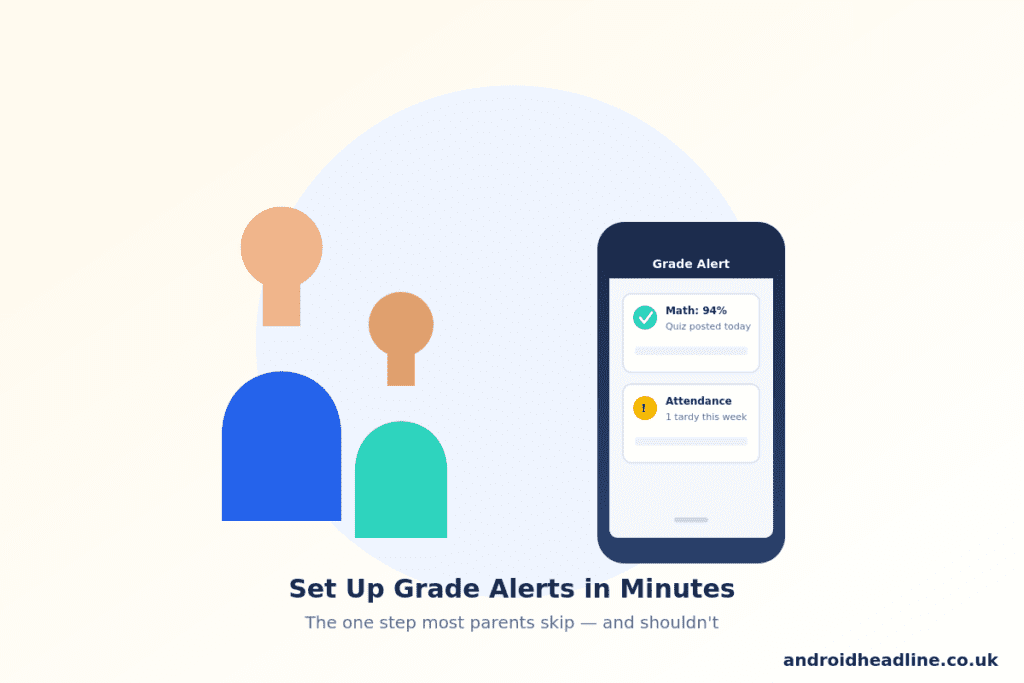
- Set up email or text alerts for failing grades or missed assignments
- Message teachers (in districts that turn this feature on)
I’ll be honest, the alert feature is the one I tell every parent to set up first. It’s a small thing, but getting a text the moment a grade drops below passing beats finding out at a parent-teacher conference three weeks later.
A Quick Side Note on Names
You might also see “txGradebook” mentioned. That’s the teacher-facing tool for entering grades — different login, different audience, same family of software. If you’re a parent, you almost never need to touch it.
How to Log Into the Real Portal
Every Texas district runs its own copy of the system, so there’s no single universal login page. Here’s the general process:
- Find your district’s official link. Check your school’s website under “Parents” or “Family Resources.” Don’t search a generic term and click the first result — there are knockoff and outdated pages floating around.
- Create your account. Your school usually gives you a registration code or asks you to verify info already on file, like your student’s birthdate.
- Set a username and password. Save these somewhere safe (a password manager works great here).
- Add your contact info for alerts. This is the step people skip and then regret.
- Bookmark the correct URL. Since old txConnect links sometimes redirect, save the new ASCENDER link once you confirm it works.
If your district migrated from txConnect to ASCENDER, your old username and password usually still work — you don’t need to start over.
TxMyZone vs. Myzone: Don’t Mix Them Up
This trips people up constantly. Myzone (no “Tx”) is a completely different product — it’s a fitness wearable that tracks heart rate during workouts. It has nothing to do with schools, grades, or Texas school districts. If you land on a page about heart-rate zones and workout calories, you’ve landed on the wrong product entirely.
Common Login Problems (and Quick Fixes)
A few headaches show up over and over:
- Forgotten username: Most portals let you recover it by email, but you usually can’t change it — only reset the password.
- Account locked after failed attempts: Wait it out or call the campus office; most districts unlock it within a day.
- Old bookmark not working: This almost always means your district moved to the newer ASCENDER link. Check the school website for the updated URL.
- No grades showing up: Some districts only post grades at the end of a grading cycle, not daily, so a blank gradebook isn’t always a glitch.
A Few Practical Tips From Experience
Set a weekly reminder, even just a Sunday-night phone alarm, to glance at attendance and grades together. I’ve found that catching a pattern (like three tardies in two weeks) early makes a much easier conversation than catching it after a report card.
Also, if you’ve got more than one kid in the district, most portals let you link all your children under one login. Saves you from juggling separate passwords for every kid.
FAQs
Is TxMyZone a national platform? No. The real system behind it (ASCENDER/txConnect) is specific to Texas public school districts and isn’t used outside the state.
Can students log in themselves, or is it parents-only? Both, usually with separate logins. Many districts give students their own student-facing version with the same grade and attendance info.
Does every Texas school district use this exact system? No. Adoption varies by district — some use ASCENDER, others use different student information systems like Skyward.
Wrapping It Up
The short version: there’s no standalone “TxMyZone” networking platform out there, but there is a very real, very useful tool behind that search term — the ASCENDER Parent Portal, built on Texas’s TxEIS system. Once you find your district’s actual link and get alerts turned on, it makes staying on top of grades and attendance a lot less stressful.
Have you run into login trouble with your district’s portal, or found a workaround that saved you a headache? Drop it in the comments — I read every one. And if this saved you some searching, share it with another Texas parent who’s still hunting for the right link.