I spend way too much time digging through PDFs for work. Contracts, reports, scanned forms — you name it. So when a friend told me about a tool called AxelaNote, I figured I’d give it an honest test run.
This Axelanote review covers everything I found: what it actually does, who it’s for, how much it costs, and whether it’s worth your time in 2026. No fluff, just what I learned from poking around the software myself and cross-checking the official details.
If you’re tired of messy PDF notes scattered across five different apps, stick around. This might be the fix you’ve been looking for.
What Is AxelaNote, Exactly?
AxelaNote is a Windows-based PDF annotation tool. It’s made by a Japanese company called TransRecog, and its whole pitch is simple: you can write, highlight, and mark up any PDF — even ones that are locked or restricted — without ever touching the original file.
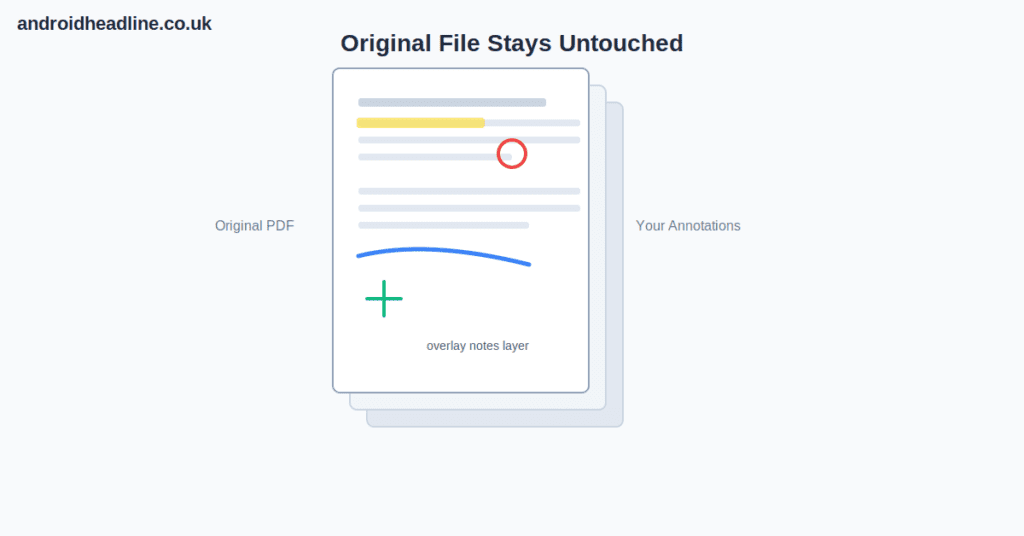
Here’s the trick. Instead of editing the PDF itself, AxelaNote places a transparent layer over the document, which lets you annotate files that have printing or editing restrictions turned on. Think of it like laying a sheet of clear plastic over a printed page. You scribble on the plastic, not the paper underneath.
That’s honestly the part that sold me. I’ve dealt with locked client PDFs before, and the usual workaround (screenshot, paste into Word, repeat) is painful.
A Quick Personal Take
I’ll be upfront — I’m not usually a fan of “yet another productivity app.” Most of them just add more clutter. But the overlay idea genuinely solves a real problem instead of reinventing note-taking from scratch. That’s rare.
Key Features That Stand Out
AxelaNote packs in a handful of features that go beyond basic highlighting:
- Non-destructive overlay — your notes sit on a separate layer, so the original PDF never changes
- Works on restricted files — annotate documents that normally block editing or printing
- Stylus and pen support — handwriting looks smooth on devices like a Surface Pro or Wacom tablet
- Multiple annotation layers — you can stack different layers and toggle them on or off, which is handy for team feedback
- Auto-numbering tools — add sequential labels across pages without doing it by hand
That layering feature deserves a second mention. A project manager reviewing a deliverable could use one layer for personal notes, another for engineering feedback, and a third just for client comments, then hide whichever layers shouldn’t be visible. It’s a small detail, but it saves a lot of back-and-forth over email threads.
Who Actually Benefits From AxelaNote?
Based on what I saw, a few groups get the most out of this tool:
- Students and researchers who need to mark up readings without ruining the original file
- Legal teams adding private notes to sensitive documents
- Project managers collecting feedback from multiple people on one shared PDF
- Trainers handing out digital materials that employees can write on directly
- Anyone working remotely who needs to review blueprints, reports, or contracts on a screen instead of paper
If your job involves a lot of PDF back-and-forth, this is built for you. If you mostly type plain text notes and never touch PDFs, you probably won’t need it.
How to Get Started With AxelaNote
Setting it up isn’t complicated. Here’s roughly how it goes:
- Download the installer from the official AxelaNote site (admin rights are required on your machine)
- Run the install and open a PDF file inside the program
- AxelaNote automatically creates an annotation layer over the document
- Use the pen, highlighter, or text tools to start marking it up
- Save your annotations as a linked file, separate from the original PDF
- Toggle layers on or off if you’re collaborating with a team
One thing worth knowing: it currently only supports PDFs up to 1 square meter in page size, and the latest version handles up to 500 A4 pages per file. That’s plenty for most everyday use, but worth checking if you work with oversized documents.
AxelaNote Pricing in 2026
Pricing is pretty straightforward and split into two license types:
- User License — covers one person across their computer, laptop, and home devices
- Device License — better for shared setups like labs, training rooms, or 24-hour shift work
AxelaNote is a paid tool, but you can try it free for 14 days after downloading before deciding whether to buy. That’s enough time to actually test it on real documents instead of guessing from a demo video.
For comparison, that free trial period is shorter than something like a 30-day trial, so I’d recommend loading it up with your actual work files right away instead of waiting around.
How Does It Compare to Other Tools?
I get the appeal of Notion or OneNote for general note-taking — I use one of them daily. But neither was built specifically for layered PDF annotation on locked files, which is AxelaNote’s whole reason for existing.
Adobe Acrobat Pro is the closest real competitor, since it also handles PDF markup at a professional level. The difference is that Acrobat can be blocked by a document’s own permission settings, while AxelaNote’s overlay approach sidesteps that restriction entirely.
So it’s less “which tool is better overall” and more “which tool solves your specific problem.” If restricted PDFs are a regular headache for you, AxelaNote fills a gap the bigger names don’t.
Final Thoughts: Is AxelaNote Worth It?
After testing it out, my honest take is this: AxelaNote isn’t trying to replace your whole note-taking system. It’s solving one specific, annoying problem — writing on PDFs you’re not technically allowed to edit — and it does that job well.
If that’s a problem you run into often, the 14-day trial costs you nothing but a little time. If you rarely deal with locked PDFs, you can probably skip it.
Have you tried AxelaNote yourself, or are you still hunting for the right PDF annotation tool? Drop a comment below and let me know what’s worked for you — and if this review helped, go ahead and share it with a coworker who’s still screenshotting PDFs into Word.