Have you ever sat in a Teams meeting and had no idea what an acronym meant, but you were too embarrassed to ask? Yeah, me too. Well, Microsoft just rolled out something that might fix that awkward moment for good.
It’s called Facilitator, and it’s a new Microsoft Teams AI feature that can actually watch and listen to your meetings. When it notices someone seems confused or asks a question that goes unanswered, it jumps into the chat with a quick explanation. No hand-raising required.
I’ll be honest, my first reaction was “wait, it’s listening?” So I dug into how this actually works, what it can and can’t do, and whether it’s something you should turn on. Let’s get into it.
What Is Microsoft Teams Facilitator, Anyway?
Facilitator isn’t brand new. It started out as a simple meeting helper that could build an agenda, keep time, and take notes automatically.
But Microsoft is giving it a bigger job now. The updated version can monitor the flow of conversation and pick up on moments where people seem lost. Think hesitation, an unanswered question, or someone flat-out saying “I’m not sure what that term means.”
When it catches one of those moments, it searches the web for a solid answer and drops a short explanation right into the meeting chat.
How Does This AI Feature Actually Watch and Listen?
This is the part that raises eyebrows, so let’s break it down plainly.
It has to be added on purpose
Facilitator doesn’t sneak into your calls. Someone with a Microsoft 365 Copilot Premium license has to manually add it to the meeting. Everyone else in the room can see its responses without needing that license themselves.
It only works in regular meetings
Good news if you host webinars or large town halls — Facilitator isn’t available there. It’s built for standard Teams meetings only, though it does work fine with outside guests or people from other companies joining the call.
It’s off by default
This one matters. Microsoft has said the feature won’t be switched on automatically for your organization. An admin has to enable it, and even then, they get to decide exactly where it shows up.
Real-World Example: Filling the Knowledge Gap
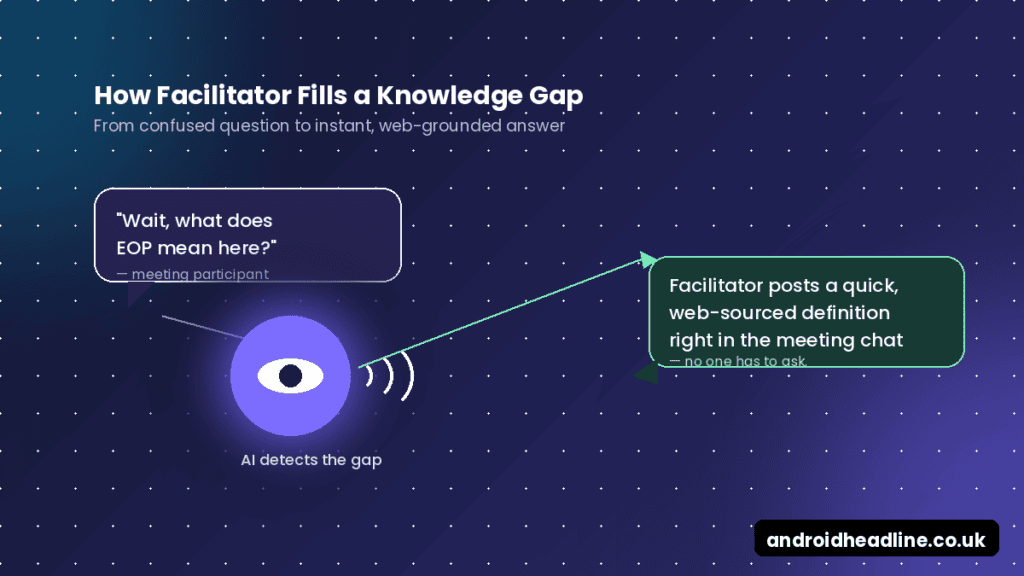
Picture a weekly sync with five people. Your newest hire asks, “wait, what’s EOP again?” and the conversation just moves on without anyone circling back.
That’s exactly the gap Facilitator is built to catch. Within moments, it posts a short, web-sourced definition in the chat — no one had to stop the meeting or type it themselves.
To keep things from getting chaotic, Microsoft says these AI responses are meant to be rare. In most meetings, you’d see this happen less than once per call, and only for questions tied to the actual topic being discussed.
Step-by-Step: How to Turn On Teams Facilitator
If your organization wants to try it out, here’s roughly how the rollout works:
- Check your license. You’ll need Microsoft 365 Copilot Premium to enable Facilitator for a meeting.
- Add Facilitator to the meeting. It gets invited like any other participant or app.
- Confirm admin settings. IT admins control where and whether the feature is visible across the organization.
- Watch the chat, not the mic. Facilitator responds through the meeting chat — it won’t start talking out loud.
- Review its answers. Since it pulls from web search, it’s worth double-checking anything technical or high-stakes.
Privacy Concerns You Should Know About
I’d be lying if I said this feature doesn’t feel a little uncomfortable at first. An AI that’s tracking confusion in real time sounds like something out of a workplace satire.
To be fair, Microsoft built in some guardrails — it’s opt-in, admin-controlled, and limited to chat responses for now. Still, if you’re not thrilled about an AI analyzing your team’s every hesitation, that’s a completely reasonable stance to have.
There’s also the accuracy question. Large language models can occasionally get things wrong, especially when pulling quick answers from the web. A wrong definition posted confidently in front of your whole team isn’t exactly harmless.
My Take: Is This Actually Useful?
Honestly? I think it depends on your team. I’ve been in plenty of meetings where a quick, judgment-free answer would’ve saved someone from Googling a term under the table for the next ten minutes.
But I also worry it could make people lean back instead of leaning in — why ask a real question when the AI might just answer it for you? I’d want to test it in a low-stakes team meeting before rolling it out company-wide.
Tips for Using Facilitator Without Annoying Your Team
- Start with one small, friendly team before a company-wide rollout.
- Tell people it’s on. Surprise AI monitoring never lands well.
- Treat its chat answers as a starting point, not gospel.
- Turn it off for sensitive or confidential meetings.
- Ask your team for feedback after a few weeks and adjust from there.
Wrapping Up
Microsoft Teams’ new AI feature can genuinely watch and listen to your meetings, catch confusion in real time, and quietly fill in the gaps — but it’s opt-in, chat-only for now, and still learning. Whether that sounds helpful or a little unsettling probably depends on how you feel about AI in the room.